
Troubleshooting
WordPress Admin Issues
On the login screen, click on the “Lost your password?” link to reset your password. Use your email address in the field provided. After a minute, check your spam/junk folder for the reset password email.
Your cache might need to be cleared. You can try a hard refresh right on the page or clear the cache from your browser. Instructions for each browser and operating system can be found here:
If updating fails several times when you save a post, there could be a character within the content that is conflicting with the save. This could happen if a UTF symbol is in the title or code. You can try two things:
- Paste the content into a text-only editor before pasting into the WordPress editor. This will remove any hidden characters that can prevent a save.
- If that does not work, try using a different character. You can find out which character it is by slowly pasting content into the editor until you narrow it down.

When you open the widget editor, you may see the errors “The “birdpress-sidebar/birdpress-article-list-sidebar” plugin has encountered an error and cannot be rendered.” This randomly shows up on some sites and can be ignored. It will not affect the site’s widgets.

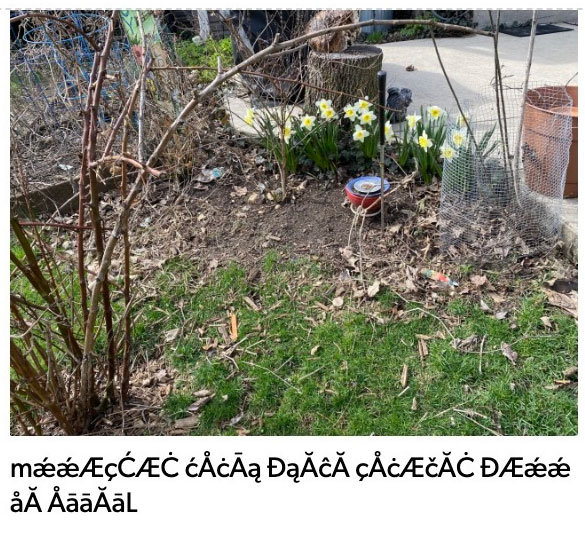
If you see symbols in place of text either in WordPress or on any other site, uninstall the Gibson font, restart your computer, then reinstall the new brand fonts.
- Instructions for uninstalling fonts on Windows and Mac (the font you are deleting is called “Gibson”)
- Instructions for installation can be found on our brand website
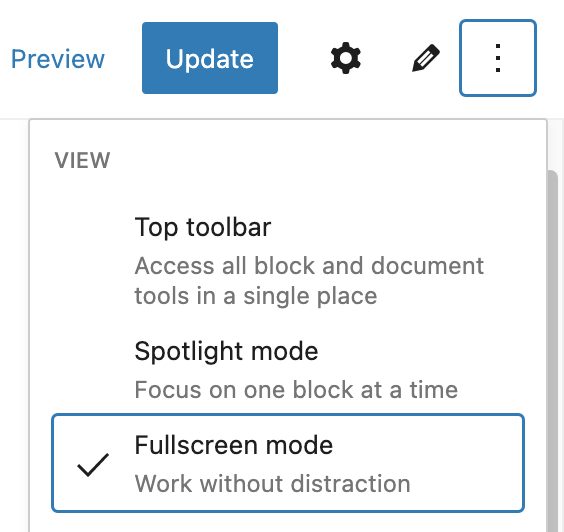
By default, the editor is in full screen mode. To turn this option off, click the three dots in the upper right corner of the editor (More Options & Tools) and deselect Fullscreen mode.
You will need to select this option every time you clear your browser cookies.
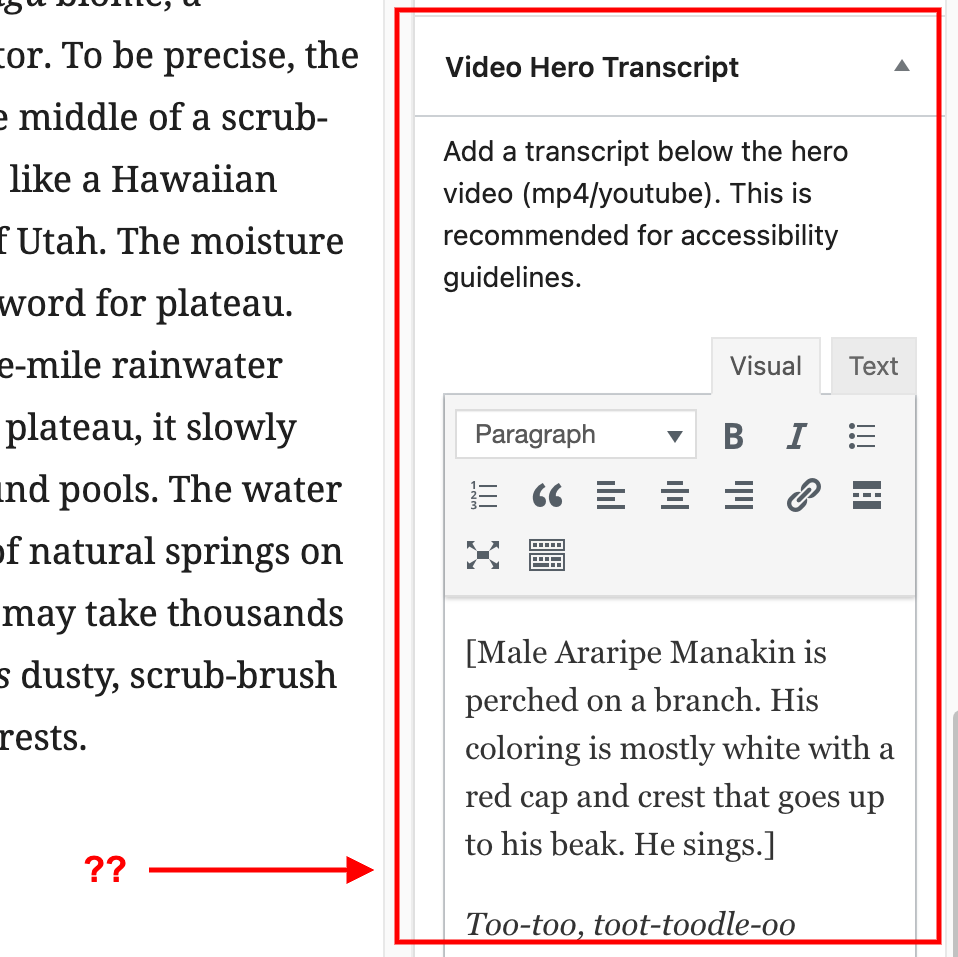
Sometimes, the panel might become deactivated on screen or accidentally get dragged under the settings sidebar.
If it is in the sidebar, unfortunately, there is no easy way to drag it back. You will have to clear your browser cookies for the site in order for it to appear in the correct location.
If it is not in the sidebar, it could have been hidden all together. Click on the three dots in the corner for Options and scroll to Preferences. If the box next to the panel you are missing is unchecked, check it.
For mac users, we highly recommend using the WordPress admin in Chrome rather than Safari. Safari, especially older versions, present some display issues that are out of our control.
If you have issues with a certain browser, please let us know.
Block Editor Issues
If you see the message below, click “Attempt Block Recovery”

If that does not work, you may have to recreate the block. Remember that you can always press undo (or CTRL/CMD + Z) if recovery does not work properly. Click on the three dots and select “Convert to HTML.” This should give you some or all of the content back to copy. Delete the HTML block when finished.
You can also troubleshoot using Block Error: Unexpected or Invalid Content from WordPress.org.
If this block error persists, contact the web team.
Do not press “Keep as HTML” or you can lose the block look. First, try reloading the editor. If the error persists, contact the web team for assistance.
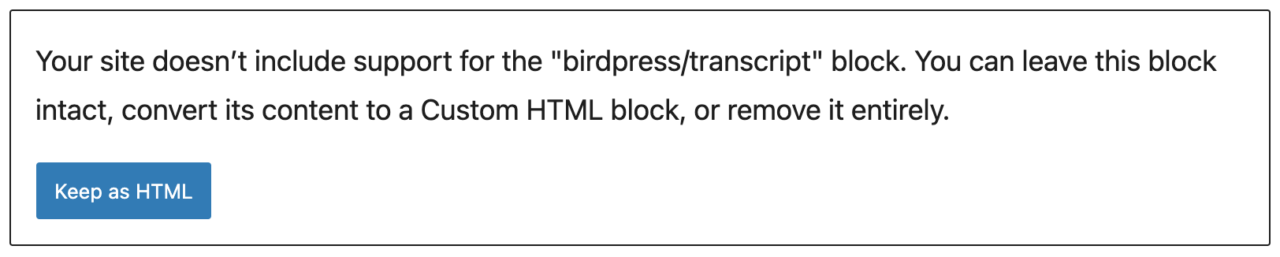
Do not panic! Your block is still there, but the editor has an error. Save your work and reload the page (CTRL/CMD + R). If the editor asks you to also save the block, uncheck it and save only the page.
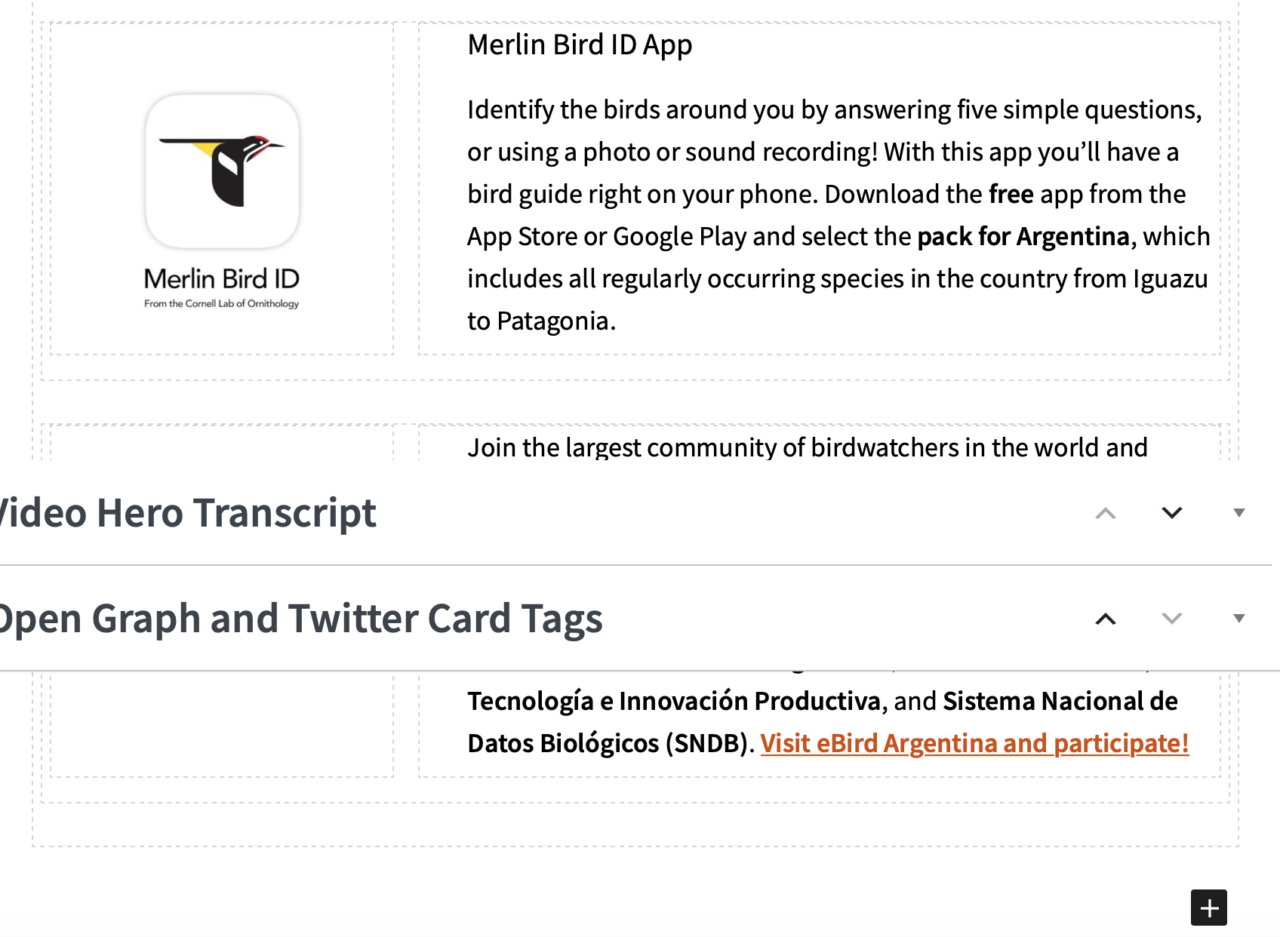
There can be some instances where the block toolbar gets cut off, especially in content on a right sidebar.
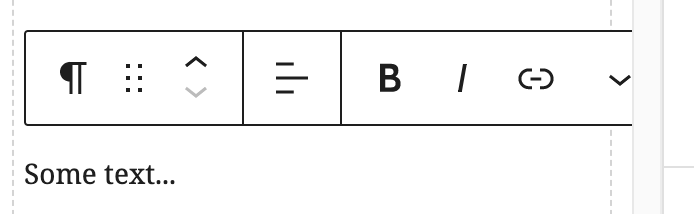
You have two ways that you can access the rest of the options:
- Close the settings sidebar – this will give more room in the editor window to complete your action. You can reopen it by clicking on the Settings icon.
- Go to options in the top right corner (three dots) and select “Top toolbar” – this will stick the toolbar to the top of the page and all options will be visible. You can change it back when you are finished.
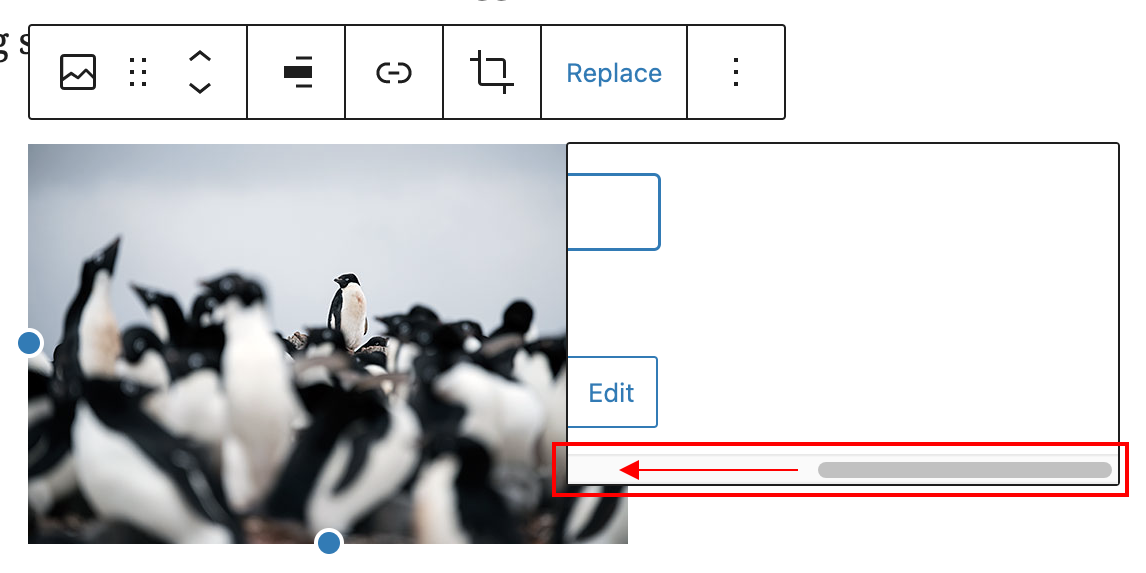
If you are having trouble with the Replace Media option, use the scrollbar inside of the pop-up to scroll to the left of the inside content.
This is an example of a global CTA
Supporting Text for the global CTA