
Images
Tips for preparing an image
- Save the image with the highest compression possible without losing too much quality
- Upload larger images (see minimums below), but try to stay away from originals that are over 3000 pixels wide.
- Image within content that are not full width do not need to be more than 2000 pixels wide.
- Always use JPG when handling photos, PNG files are too large
- Use GIF or PNG for line drawing, text, and other graphics
- Try to avoid transparent PNG files unless it is necessary
Image ratio and size chart
| Image | Ratio | Minimum size (in pixels) |
|---|---|---|
| Hero image image will be cropped exact when displayed | 2:1 (default) 5:2 8:3 3:1 | 1980×990 1980×792 1980×742 1980×660 |
| Featured image image will be cropped in article lists | 4:3 | 1024×768 is recommended, however 720×540 is acceptable if you cannot get a larger size |
| Cover image / full width image extends beyond content container unless a widget or anchor nav sidebar is present | 16:9 or shorter | At least 1980px width 1980×1114 (16:9 ratio) |
| Content images | 4:3, 3:2, 16:9, 1:1 | Minimum 720 will fill out on mobile breakpoints Wide width (narrow layout): 1024 width Wide width (wide layout): 1280 width Aligned left or right: 720 width |
| Image Grids | Grid 1 & 2: 3:4 (tall image), 10:7 (half-size image), 7:10 (two smaller images) Grid 3 & 4: 1:1 (larger image), 2:1 (two smaller images) | Images look best at double the size they appear on screen |
Image sizes
WordPress will create three copies of your images at different widths, for any image above 1280 pixels wide:
- Large: 1280 pixels
- Medium: 720 pixels
- Small: 480 pixels
The recommended minimum sizes (in pixels) for images are below. Maximum sizes should be double these sizes to keep load time down.
Images with sidebar present
If you have a widget or anchor navigation sidebar on a post or page, full and wide width images will not extend beyond the content container. This is to prevent overlap of content. We recommend using synced patterns for sidebar content to retain desired design elements.
Aspect Ratio
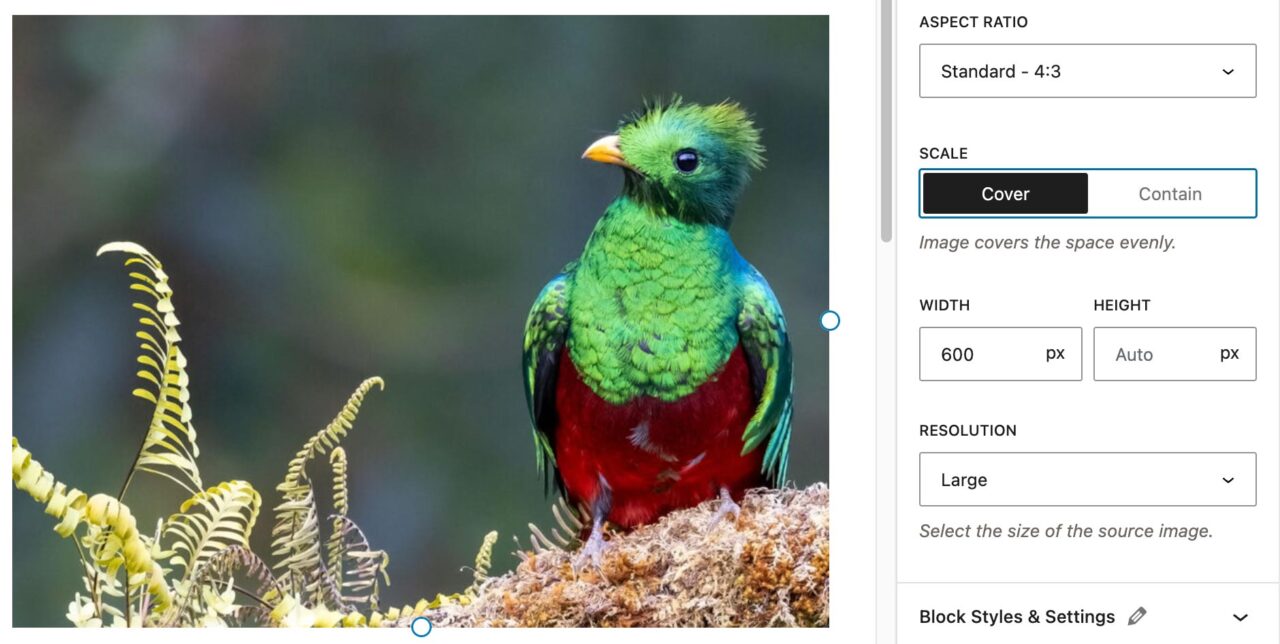
As of WordPress 6.3, you can now change the aspect ratio of an image using the block sidebar. In the example image, a 16:9 image is cropped to 4:3 using the aspect ratio options instead of cropping the actual image.
Slideshows
Slideshows are a variation of the Gallery block. They can be added through the block inserter or toggled under the Advanced panel on the right block sidebar of the Gallery block.
Images and captions are added the same was as a regular gallery.
Note: Columns on the gallery settings make no difference on the published page when the gallery is toggled as a slideshow.
The slideshow will display as a normal gallery in the editor. It only functions on the published or previewed page.
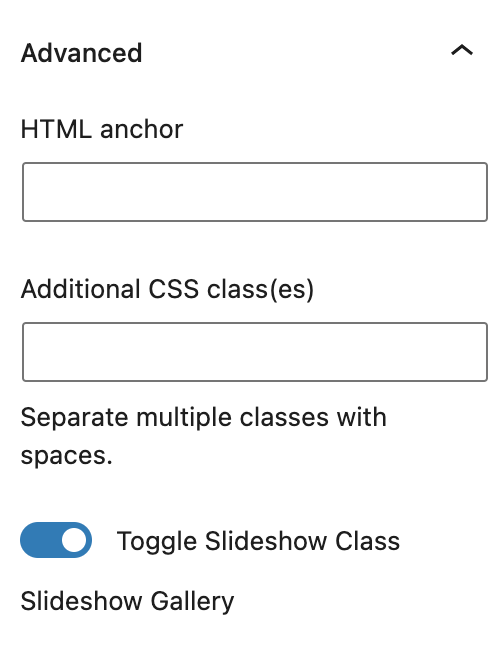
Image Cropping in WordPress
We recommend editing and cropping photos in a photo editor, such as Paint (Windows), Photos (Mac) or Photoshop. If you do not have access to a photo editing program, you can edit images from the WordPress media library.
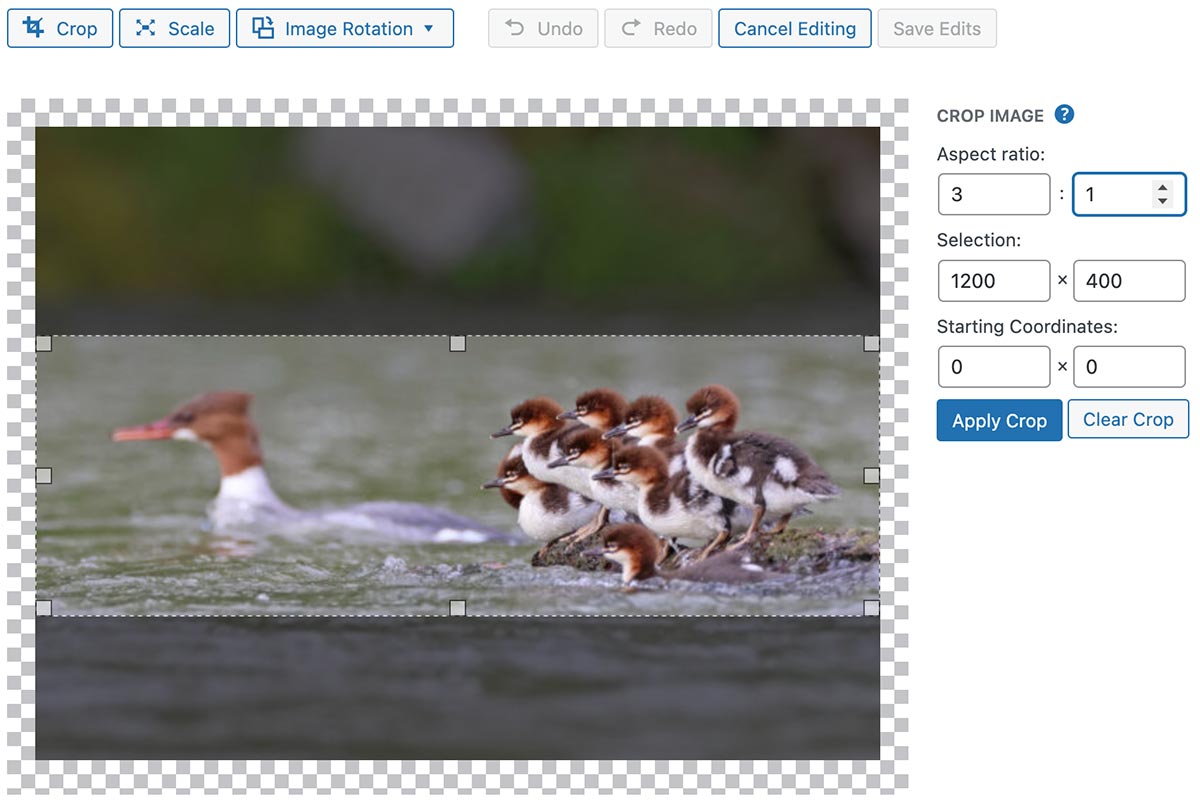
One of the most common reasons to edit an image is to crop it. For this example, we will crop an image to be used in one of the shorter hero image options that has a ratio of 3:1.
- There are two ways to access a photo to edit it:
- From the Media link on the admin sidebar:
- Select the photo
- Click the Edit Image button under the large preview
- From the Media Library when you are editing a page:
- Select the photo
- In the right sidebar, click the Edit Image link that is under the thumbnail (above the Delete link)
- From the Media link on the admin sidebar:
- Click the Crop button
- Set the aspect ratio to the right of the image – 3 in the first box and 1 in the second.
- Click the Apply Crop button.
- Click the Save Edits button or your changes will be lost.
Photographer Credits
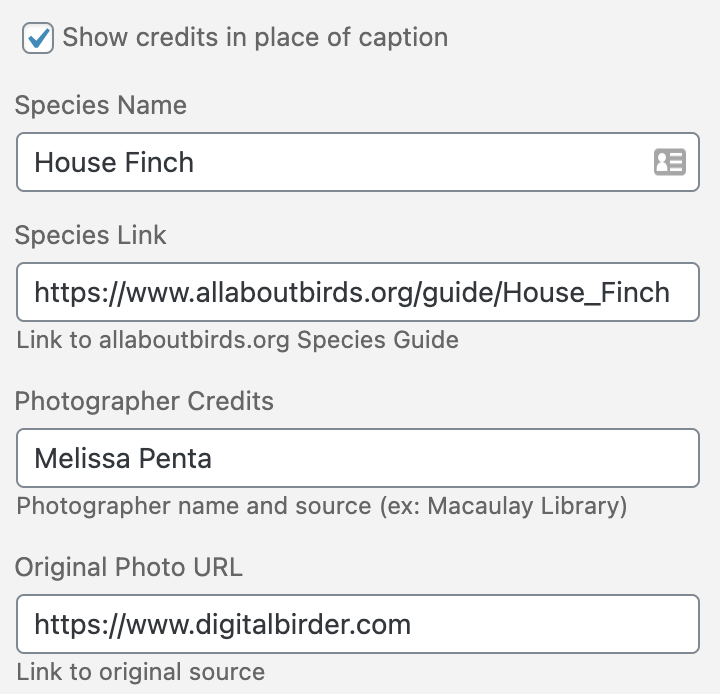
The ability to add photographer credits are available on hero images. Species Name and Photographer Credit are the only required fields for the credits to show up properly. The links are optional.
Optionally, the default caption box can be used.
Note: This is only available for the hero image.
This is an example of a global CTA
Supporting Text for the global CTA