The Block Editor
An introduction to the WordPress editor
Get to know the new editor
The new content editor uses a block-based system to build content. There are several main components to keep in mind in the layout:
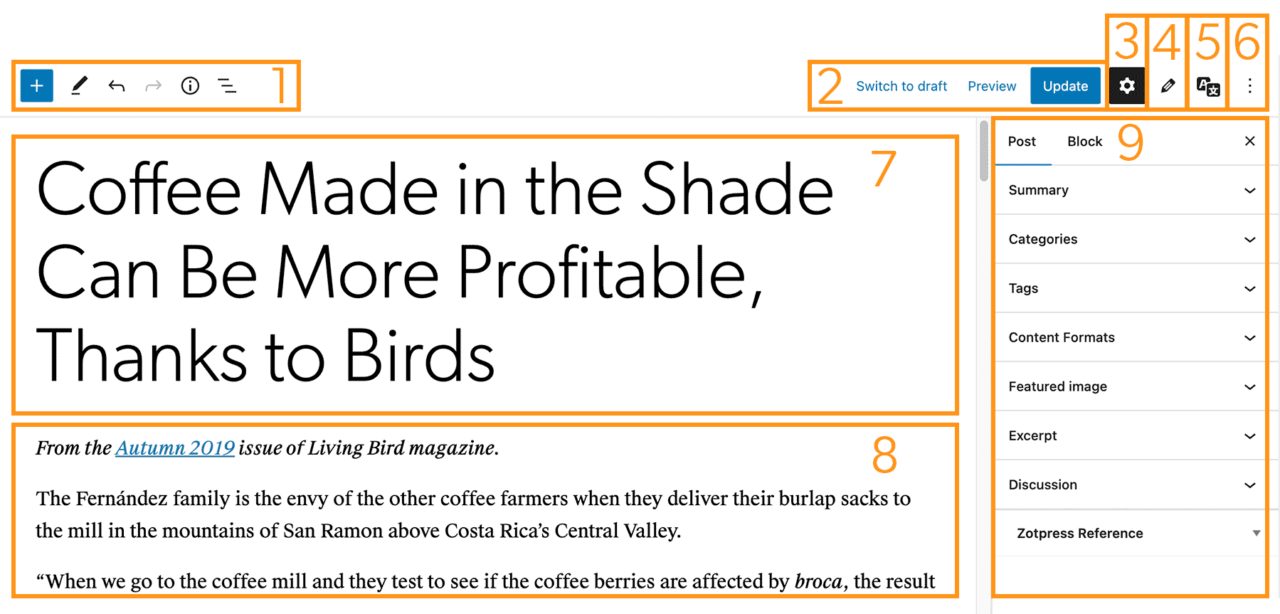
1. Top Toolbar
- Add a new block
- Choose edit or selection mode
- Undo and Redo
- Content Structure – document outline, word and block count
- List View / Block Navigation
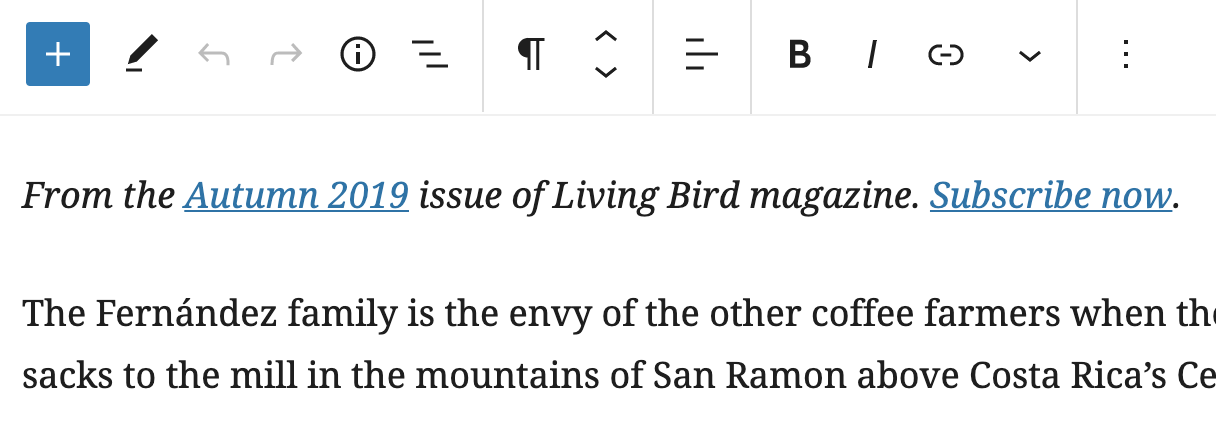
- If Top Toolbar is selected in your view options, block toolbar options will also appear here
2. Publishing Options
Publish and switch to draft with one click.
3. Settings
This toggles the right sidebar area that includes page/post and block settings.
4. Custom Fields
Toggles the right sidebar area that includes custom fields for the page or post are part of the sidebar. Current custom fields include:
5. PolyLang Settings
Multilingual sites only: Set language for the page and link it to a different language’s page.
6. More tools and options
- View – Toggle the top toolbar, spotlight mode and the full screen editor
- Editor – Toggle the visual or code editor
- Plugins – Toggle extra sidebars added by plugins (like custom fields)
- Tools – Disable certain blocks across the site, manage reusable blocks, keyboard shortcuts and more
- Options – Toggle panels on the screen
7. Post/Page Title
The page title sits on top of the content within the editor. This is not part of the content and will appear above the content or over the hero image, if one is selected.
8. Block editor / Content Area
Each piece of content is its own block – this includes all text, media, content design elements, embeds and widgets. Block options can be found in the following pages:
- The Block Editor
- Text Blocks
- Paragraph
- Heading
- List
- Quote
- Details
- Pullquote
- Table
- Footnotes
- Classic Editor
- Media Blocks
- Image
- Gallery
- Slideshow
- Logo Gallery
- Cover
- Video
- Audio
- File
- Media & Text
- Design Blocks & Widgets
- Accordion
- Buttons
- Columns
- Group
- Separator
- Spacer
- Shortcode
- Social Icons
- RSS
- Custom HTML
- Embeds
- YouTube
- Vimeo
- Social Media
- Sound Cloud
- Custom Blocks
- Article List
- Simple List
- Accordion
- Video Transcript
- Content Carousel
- Block Styles
To add content, simply start typing and a paragraph block will automatically be created. To add new blocks, you can press the plus [+] icon or, for a shortcut, type a slash followed by the block you want to add on a new line. For example, /image will give you the image block and /heading will show the heading block.
Here are more in-depth guides to help you get used to the new editor:
- WordPress Block Editor official documentation
- WordPress Block Editor: The Ultimate Guide
- How to Use the WordPress Block Editor
9. Sidebar area
The right sidebar contains all of the document (page/post) editing options including publish status, permalinks, categories and tags, featured image, excerpt and page attributes. If a block is selected, the block settings will appear here. Any custom plugins such as Custom Fields and PolyLang settings also use this space.
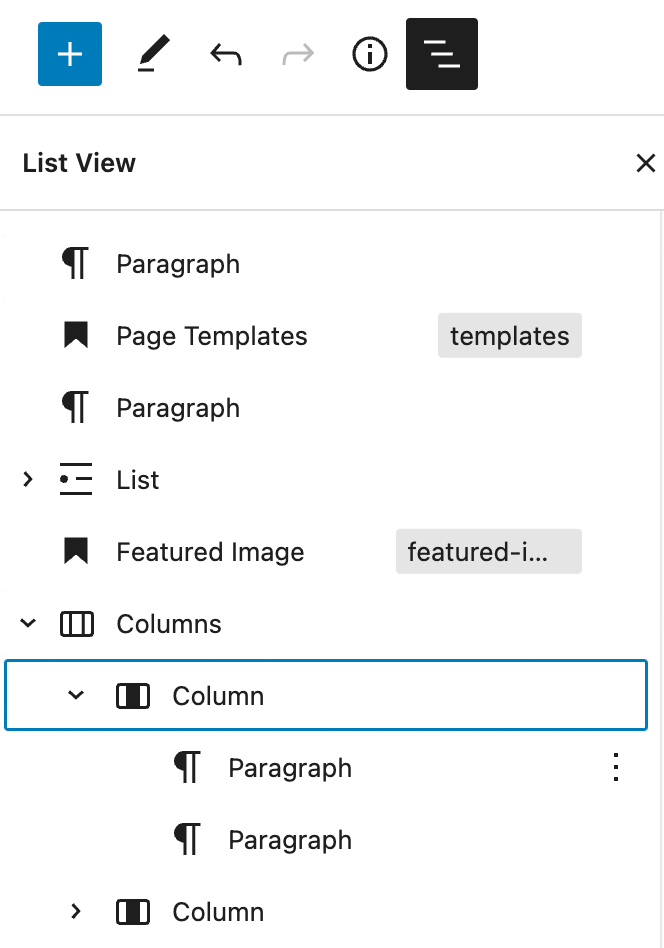
List View / Block Navigation
Easily navigate to different blocks without scrolling through the editor. Blocks can be reordered and copied with ease.
The list view can also be used to navigate through nested blocks such as groups and columns – this could make it easier to select a parent item or specific column from the block.
To copy blocks:
- Select the first block you want to copy
- While pressing shift, select the last block
- Click on the three dots to the right of any of the selected blocks
- Select copy blocks
- The blocks can now be pasted anywhere in the editor using CTRL/CMD+V
Block Toolbar
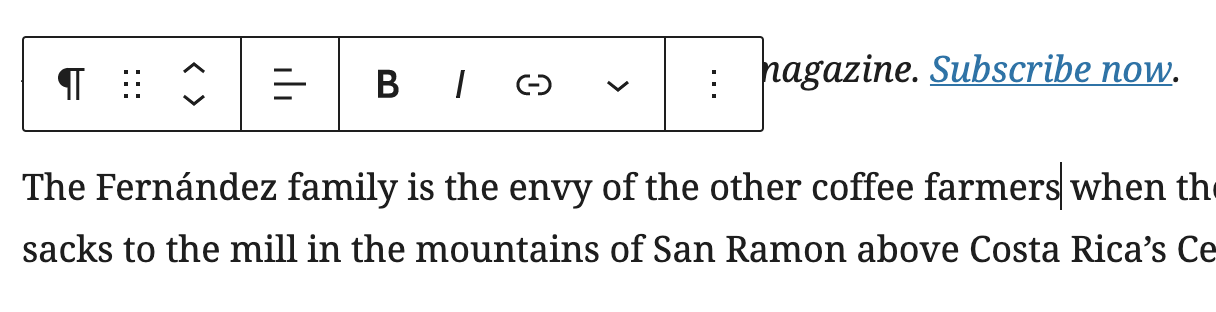
The block toolbar contains options to edit format, re-order, change and delete blocks.
You can choose to have it floating above the block or in a locked position at the top toolbar. To toggle this, go to More tools & options and select Top Toolbar.
Note: The floating toolbar includes a way to drag and drop the block to a new location while the top toolbar only has the reordering buttons.
More Options
The More options menu in the block toolbar gives you additional options to customize your block. You can access these additional options by clicking on the ellipses (three dots) in the block toolbar. For details on available options see More Options from WordPress.org.