
Frequently Asked Questions
The Block Editor
How do I add blocks to the editor?
There are several ways to add blocks to the editor:
- You can click on the + button in the top left corner of the editor. This will add a block to the end of the editor or, if your cursor is inside of another block, after that block.
- You can click the block appender button + that appears inside of the content. This will add a block where the appender is in place.
- You can press enter after a block and type a forward slash followed by the block name. For example, to add a heading, start typing /head and options of blocks to add will appear. Click on the block to add it to the editor.
- If you hover over an area that you want to add a block, the + icon will appear. Click it to open the block appender.
How do I move a block outside of a group or column?
To move a block outside of a group or column:
- Click and hold onto the six dots next to the block icon.
- Keep the mouse button pressed and move the block to its new location. You should see a line that indicates where the block will be placed.


You can also drag blocks into a group of column in this same way. To select multiple blocks, keep shift pressed while you select the blocks.
What is the best way to select the columns block or synced pattern in the editor?
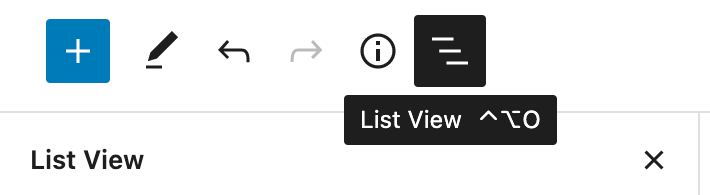
It can sometimes be difficult to select blocks that have nested blocks inside of them, for example – groups, columns or synced patterns. The best way to select these blocks are by using the outline icon in the top toolbar and finding your block. If your cursor is inside of the block, it will be easier to know which parent block to select.
How do I add formatting or a link to an image caption?
The following common shortcuts are available in hero and image captions:
| Command | Windows | Mac |
|---|---|---|
| Bold | Ctrl+B | Cmd+B |
| Italic | Ctrl+I | Cmd+I |
| Insert Link | Ctrl+K | Cmd+K |
| Line break | Return | Return |
How do I embed an iframe if the embed block will not accept it?
Use the HTML block. Make sure to add a relevant title to the iframe for accessibility.

Can I still use the classic WordPress editor?
We are not disabling the new block editor in BirdPress 2.0 on a per-site basis.
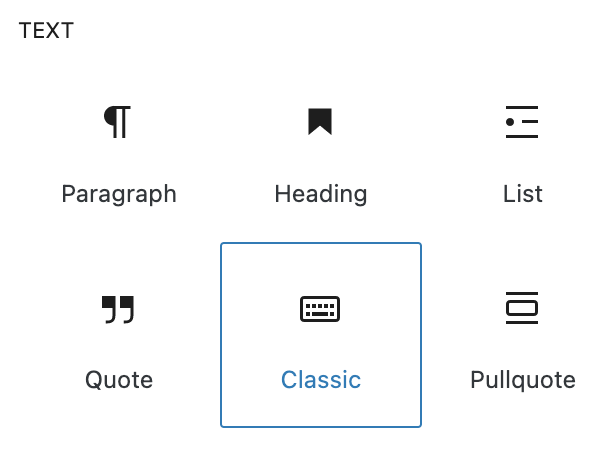
There is a Classic Editor block available under the Text category. This is more like editing a Word Document. We only recommend this for using text (headers, content, bulleted lists). Images and videos will not have the same styles as they do with the block editor.
Pages & Posts
What is the best way to copy and paste content/blocks?
- Open List View in the top toolbar
- Click on the first block you want to copy
- While pressing the shift key, click on the last block you want to copy. This should select the blocks plus all in-between.
- Click on Options (three dots) on the block toolbar and select Copy
- On the new page, put your cursor in the content area and paste the content (right click, Paste; or CMD+V or CTRL+V on your keyboard)

How do I duplicate an entire page?
We have two ways that you can duplicate a post or page:
In the page or post list, hover over the page/post you want to duplicate. Options for the page should appear under the title. Select Clone or New Draft to create a duplicate of the page. If you do not see the clone options, contact the Tech Team.
Or follow the steps under “What is the best way to copy and paste content/blocks?”
How do I edit content as a draft on a published page?
By default, WordPress does not support having draft content on a live page. We do have a plugin available that can rewrite your existing page with a duplicated draft.
When you hover over the page you want to edit as a draft, select the option called “Rewrite & Republish.” This creates a temporary duplicate of the original post. When the duplicate is published, the content will replace the existing post.
Another workaround is to work on a new page in draft, then replace the content on the published page once it is approved.
- In the page or post list, hover over the page/post you want to duplicate. Options for the page should appear under the title. Select Clone or New Draft to create a duplicate of the page.
- Make your edits on this page, but do not publish this page and do not replace the existing page with this one.
- Once approved, follow the steps under “What is the best way to copy and paste content/blocks?” to copy the newly updated blocks with the old ones.
How do I send out a page link in draft without publishing it?
In the page settings sidebar, under the summary panel (same one that has the publish options), check the box next to Enable public preview. A URL will generate for the page. Copy the URL in the text box to send for a preview.
If you do not see the public preview option, contact the Tech Team.
Troubleshooting Editor Issues
See the Troubleshooting page
This is an example of a global CTA
Supporting Text for the global CTA