
Pages & Posts
Along with the block editor, there are other options available to modify how posts and pages are displayed, both on their own and how they show up in lists.
Page Templates
BirdPress templates are mostly built using the block editor. The following page templates are available for more specialized pages:
- Article List Template – a customizable article/blog template that features an article list under content
- Full Width Template – a template for very specialized designs
Featured Image
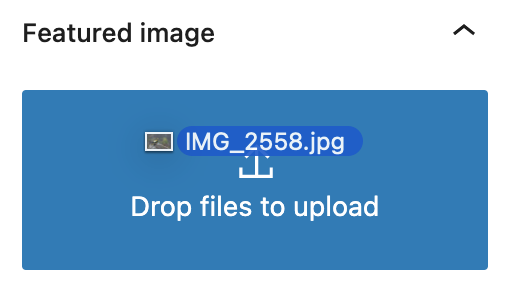
Featured images should be uploaded to every post and page that are listed on the site using Article Lists or the Latest Posts block (with featured images enabled)
The featured image upload is located Document tab in the sidebar. You can upload from your media library or drag and drop an image. Featured images should have an aspect ratio of 4:3 to display properly and have a width of at least 480 pixels (the larger, the better).
In the right sidebar, click the cog Settings button > Page/Post > Scroll down to set the Featured Image
Excerpt
An Excerpt is a block of text which will be displayed when a post or a page is included in an article list. If the excerpt field is not filled in, a block of text will be pulled in as the excerpt text, from the first 40 words of the Page/Post content (the length can be edited in Customize options). If the excerpt field is filled in, the excerpt text will be used in place of this auto-pulled text.
Go to Settings > Page/Post > Excerpt

Hero Image or Video
See Hero images and videos for all hero options.
Post Options
External Link
When a Post is included in an article list, the default behavior is to link directly to that post. If you would like to link to a different web page, include the full link (with http(s)://) in the External custom post field.
The Post’s header (title), excerpt, and featured image will get displayed in an article list block, on an Article List template page, in the “More to Read” section, or in a blog display.
Hide from Search Engines
All pages are searchable by default. If you want an individual page to be excluded from being seen by robots, toggle this on.
Go to Edit Custom Fields > Post Options

Page Width
Override the global page width for an individual page or post.
Hide Global CTA
If a global CTA is enabled on the site, toggle this on to hide it from an individual page.
Logo
Special case for partner lists. If show logos is toggled on a grid-style article list, this logo will appear next to the post/page title. See Article Lists for more.
Post Navigation
Previous / Next Post links
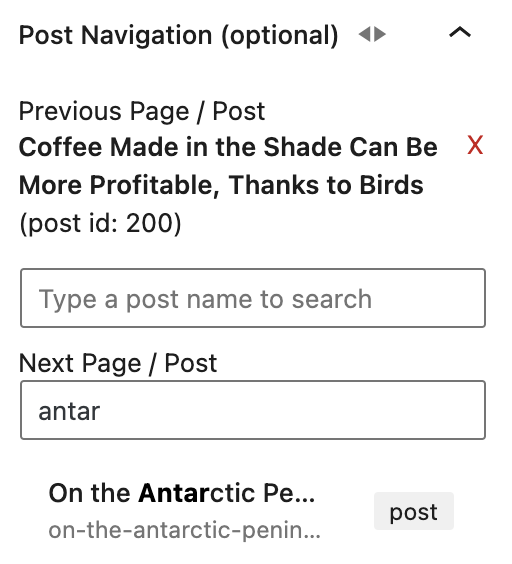
You can create a linear post navigation by adding previous and next post links to the bottom of a page or post. To add to a page or post:
- Start typing the name of the page or post in the textbox to reveal suggestions
- Select the suggested post
- The post title and id will appear above the textbox
- The selection can be removed by pressing the X next to the title
Go to Edit Custom Fields > Post navigation
Sub (secondary) Navigation
Pages that relate to the same topic can be linked to in a secondary navigation menu (example on the Blocks and Accessibility pages).
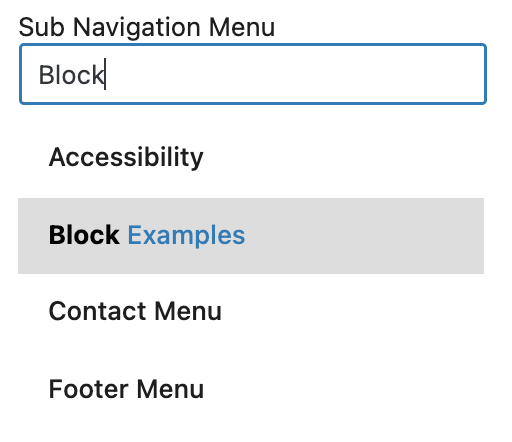
This menu is created in Appearance > Menus and selected within each page that it should appear on.
To add to a page or post:
- Start typing the name of the menu in the textbox to reveal suggestions
- Select the suggested menu
- The menu name will appear above the textbox
- The selection can be removed by pressing the X next to the menu name
Go to Edit Custom Fields > Post navigation
Anchor (tertiary) Navigation
A sidebar navigation that links to anchors within the same page can be added as a tertiary navigation menu (an example is on the right sidebar of the current page).
This menu is created in Appearance > Menus and selected within each page that it should appear on.
Use the same steps as sub navigation to add a menu to a page or post.
To learn how to create anchor links within a page, visit the Menus page.
Go to Edit Custom Fields > Post navigation

Duplicate a Page or Post
In the page or post list, hover over the page/post you want to duplicate. Options for the page should appear under the title. Select Clone or New Draft to create a duplicate of the page.
If you do not see the clone options, contact the Tech Team.
Preview Draft Posts
In the page settings sidebar, under the summary panel (same one that has the publish options), check the box next to Enable public preview. A URL will generate for the page. Copy the URL in the text box to send for a preview.
If you do not see the public preview option, contact the Tech Team.
This is an example of a global CTA
Supporting Text for the global CTA